
Single Sign-On Registration
Pre-requisites
- An email address you can access
- A chosen username
- A passkey (or email login as alternative)
Setup Instructions
Step 1: Request Your Account
Give your email address and username to your Admin. Once you request, please wait until the Admin confirms your account has been created. You'll then receive a username.
Step 2: Log In
- Go to the dashboard: https://dash.prestunes.casa
- In the last section called "Tools", click "SSO".
- Click "Alternative Sign in Methods"
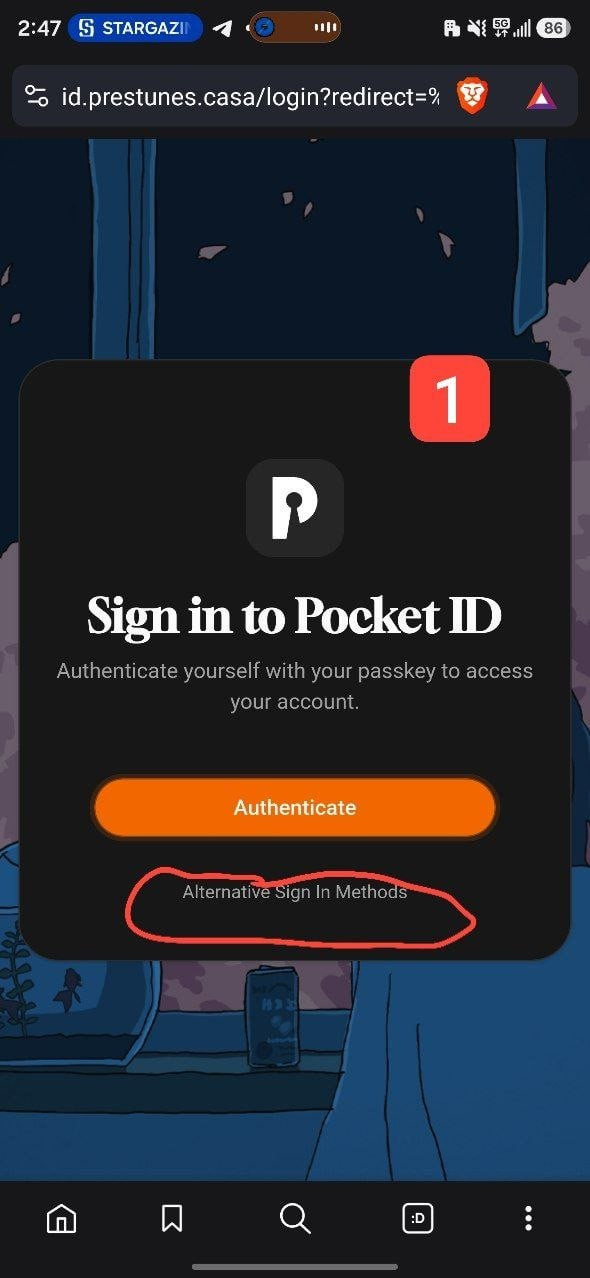 ![[Pasted image 20261006152836.png]]
Step 3: Authenticate
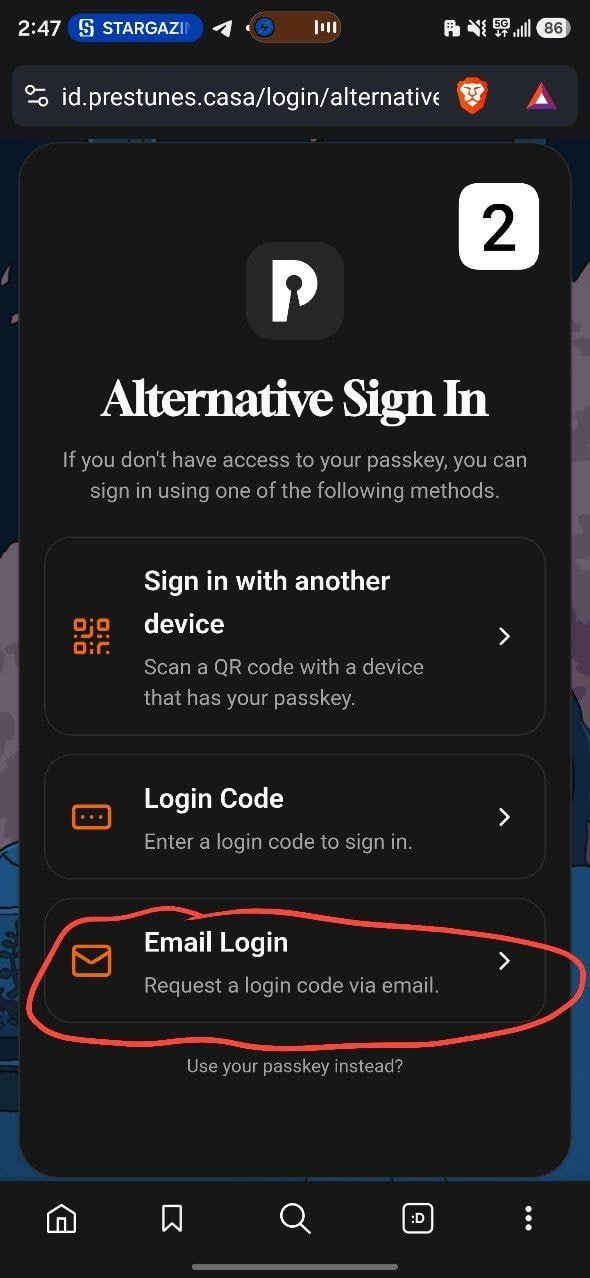
- You'll be directed to a alternative sign-in page
- Use Email Login as an alternative
 ![[Pasted image 20261006153017.png]]
Step 4: Create Your Passkey
- Input your email
- You will receive an email containing a code from
do-not-reply@oreo.club - Input that code and create your passkey
- You will use this passkey to access all services on the server
⭐ For Future Sign-Ins
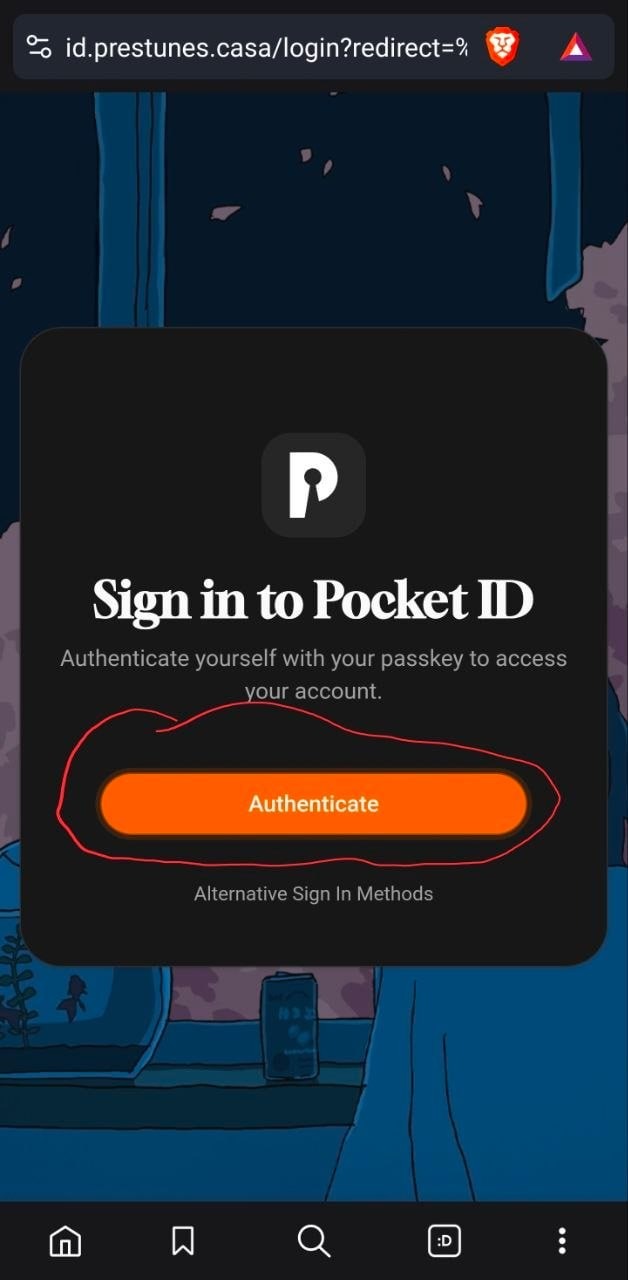
Once you have created your passkey, you no longer need to use "Alternative Sign in Methods" for future logins.
Next time you sign in:
- Go to https://dash.prestunes.casa → Tools → SSO
- On the sign-in page, simply click "Authenticate" SSO.pdf
- Use your passkey to sign in — you're in! ✅
ℹ️ The "Alternative Sign in Methods" option is only needed if you lose access to your passkey or are setting up for the first time
 ![[Pasted image 20261006153354.png]]
Important
📌 Please bookmark https://dash.prestunes.casa
Quick Reference Card
| Step | Action |
|---|---|
| Request | Email your Admin your email address |
| Wait | Admin will confirm when account is ready |
| Log In | Visit https://dash.prestunes.casa → Tools → SSO |
| Sign In | Use passkey or click "Alternative Sign In" for email login |
| Passkey | Create after receiving code from do-not-replay@oreo.club |
No comments to display
No comments to display